Notes / · 14 min
Running an ERP project in Microsoft Planner: buckets, labels and rules for four companies
A client, an ERP vendor, an MES vendor and an e-shop agency in one plan - using only what a Planner basic plan offers. How to set up buckets, the 25 labels, task naming, checklists and the weekly rhythm, with PowerShell to build and report on the plan, and what an MCP server could add.
A mid-sized manufacturer introduces a new ERP. Four parties work on it: the client’s own team, the ERP vendor, the vendor of the MES on the shop floor, and the agency that runs the e-shop. Each has its own ticket system, its own project plan and its own idea of who is waiting for whom. What’s missing is one shared list of what has to happen, who owns it and by when.
Microsoft Planner is usually already there - basic plans come with most Microsoft 365 subscriptions. It isn’t a project scheduling tool, and it shouldn’t pretend to be one. But as the shared task board of a multi-party project it does the job, if you set a few rules before the first task is created.
This note sticks to what a basic plan offers. No dependencies, no Gantt chart, no custom fields, no task history - those are premium features.
What a basic plan gives you - and what it doesn’t
| Basic plan has | Basic plan doesn’t have (premium only) |
|---|---|
| Buckets (board columns) | Dependencies between tasks |
| Up to 25 labels per plan | Timeline / Gantt, critical path |
| Priority, start and due date | Custom fields |
| Several assignees per task | Goals, sprints, backlogs |
| Checklist, description, attachments, comments | Task history |
| Board, grid, schedule and chart views | People view |
| Recurring tasks, Outlook calendar, Teams tab | Copilot in Planner |
| Up to 9,000 tasks per plan |
Two consequences shape everything below:
- No dependencies and no Gantt. The master schedule - phases, milestones, the critical path - lives elsewhere (the integrator’s project plan, Excel, or Project). Planner holds the tasks that people actually work on, and the milestones as dated tasks.
- No task history. Planner won’t tell you later who changed a due date or why. Anything that matters - a decision, a reason for a delay - has to be written into the task’s description or comments.
Permissions: everyone in the plan sees everything
A basic plan belongs to a Microsoft 365 group. Whoever is a member of the group sees every task in the plan - there are no task-level permissions. With three external companies in the plan, that matters:
- External people join as guests in the client’s tenant and are added to the group. Check the client’s guest settings before the kick-off, not on the day.
- Commercial topics - claims, penalties, change-request pricing, the client’s assessment of a supplier - don’t belong in the shared plan. Keep a second, client-only plan for the steering committee.
- Assign tasks to people, never to “the supplier”. If the ERP vendor’s project manager is the assignee, there is a name to ask.
Buckets: one per workstream
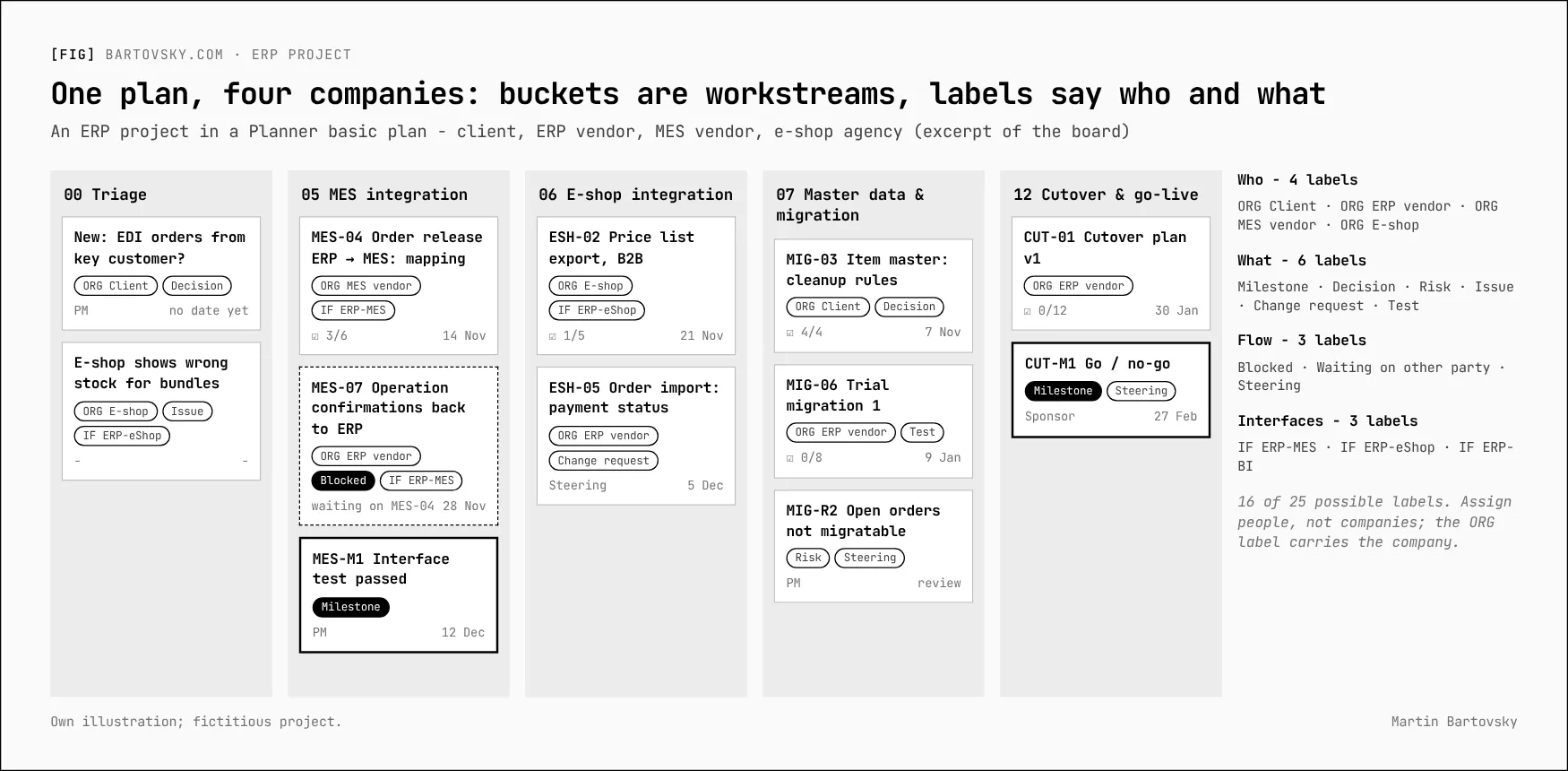
Buckets are the columns of the board. Use them for workstreams, not for status - status is what “not started / in progress / completed” is for - and not for companies, because most interesting tasks involve two of them.
| Bucket | Code | What goes in |
|---|---|---|
| 00 Triage | - | Every new task lands here; the project manager sorts it weekly |
| 01 Project management | PM | Plans, reports, steering committee, contracts follow-up |
| 02 Finance & controlling | FIN | Chart of accounts, cost centres, period close |
| 03 Sales & distribution | SD | Pricing, order types, invoicing |
| 04 Purchasing & warehouse | PUR | Approval rules, stock locations, inventory |
| 05 Production & MES integration | MES | Routings, order release to MES, confirmations back |
| 06 E-shop integration | ESH | Items, prices, stock and orders between ERP and e-shop |
| 07 Master data & migration | MIG | Cleanup rules, trial migrations, reconciliation |
| 08 Infrastructure & security | INF | Environments, roles and permissions, backups |
| 09 Reporting & BI | BI | Operational reports, data model, Power BI |
| 10 Testing | TST | Test scenarios, integration tests, user acceptance |
| 11 Training & change | TRN | Key users, end-user training, documentation |
| 12 Cutover & go-live | CUT | Cutover plan, rehearsals, go / no-go |
The number prefix keeps the order stable. The triage bucket is the most useful one: anyone - including a supplier - can add a task without knowing where it belongs, and nothing gets lost in the wrong column.
Labels: who, what, flow, interfaces
25 labels is plenty. The temptation is to use all of them; resist it. If people have to scroll through the label list, they stop using it. Four groups cover a multi-party ERP project:
| Group | Labels | Why |
|---|---|---|
| Who - the company that owns the task | ORG Client · ORG ERP vendor · ORG MES vendor · ORG E-shop | Assignees are people; the label lets you filter “everything the MES vendor owes us” in one click |
| What - the kind of task | Milestone · Decision · Risk · Issue · Change request · Test | Turns the plan into a milestone list, a decision log, a risk register and an issue list - by filter |
| Flow - what blocks it | Blocked · Waiting on other party · Steering | The agenda of the weekly meeting and of the steering committee |
| Interfaces - between systems | IF ERP-MES · IF ERP-eShop · IF ERP-BI | Interface tasks are where multi-vendor projects fail; they need to be findable as a group |
That’s 16 labels, with nine spare for whatever the project discovers it needs. Name them with a prefix (ORG, IF) so they sort together in the label picker.
Rules for tasks
A code in the title. Planner basic shows no task number. Give every task a short code from its bucket: MES-04 Order release ERP → MES: mapping. In meetings and e-mails “MES-04” is unambiguous; a title paraphrased three different ways isn’t. Milestones get -M1, -M2; risks -R1.
One accountable person. Planner allows several assignees, but a task with three owners has none. One name; others are mentioned in the description.
Dependencies by hand. Without dependencies in the basic plan, write them into the title or the description - “waiting on MES-04” - and set the Blocked label. It’s crude, and it works, because the weekly meeting walks through the Blocked filter.
The checklist is the definition of done. Up to 20 items per task. For an interface task, for example:
- Field mapping agreed by both vendors
- Error handling defined (what happens when a message fails)
- Test data prepared
- Integration test passed in the test environment
- Monitoring in place (who sees a failed message, and how)
- Signed off by the client’s process owner
A task is complete when the checklist is - not when someone feels done.
Priority means something. Urgent only for go-live blockers. Important for anything on the steering committee’s agenda. Medium by default. Low for nice-to-have. If everything is urgent, the filter is useless.
Dates. A due date on every task outside triage. Milestones as tasks with the Milestone label and a due date - the schedule view then shows them on a calendar.
Four registers from one plan
The basic plan has no separate registers, but filters by label give you all four:
- Milestones: filter Milestone, schedule view.
- Decisions: a task with the Decision label for every open question - “DEC: one change number for engineering and production?”. The description records the options; when decided, the decision, the date and who decided go into the description and the task is completed. Completed Decision tasks are the decision log.
- Risks: Risk label; priority as severity; description with impact, likelihood and mitigation. Reviewed at the steering committee.
- Change requests: Change request label; description with who asked, why, and the impact on time and cost as estimated by the supplier. The commercial approval itself happens in the client-only plan or the contract process.
The weekly rhythm
- Monday: the project manager empties 00 Triage - every task gets a bucket, an owner, labels and a date, or is closed.
- Weekly project meeting (all four companies): filter Blocked and Waiting on other party first, then overdue tasks, then the next two weeks of milestones. Not a walk through every bucket.
- Steering committee (monthly): filter Steering - decisions to take, risks, change requests, milestone status.
- Rule for overdue tasks: an overdue task gets a new date and a comment why - in the meeting, not silently.
PowerShell: build the plan, report on it
The Microsoft Graph PowerShell SDK can do everything above in a few lines. Two caveats first: updates to plan and task details need the current ETag (-IfMatch), and Graph returns label and assignee lists as dictionaries. The snippets are illustrative - try them on a test plan first.
Connect and create the plan in an existing Microsoft 365 group:
Install-Module Microsoft.Graph.Planner, Microsoft.Graph.Groups, Microsoft.Graph.Users -Scope CurrentUser
Connect-MgGraph -Scopes "Tasks.ReadWrite", "Group.Read.All", "User.Read.All"

$group = Get-MgGroup -Filter "displayName eq 'PRJ-ERP Implementation'"
$plan  = New-MgPlannerPlan -BodyParameter @{
  container = @{ url = "https://graph.microsoft.com/v1.0/groups/$($group.Id)" }
  title     = "ERP implementation"
}
Buckets in order. An order hint of " !" puts an item first, so create them in reverse:
$buckets = '00 Triage','01 Project management','02 Finance & controlling','03 Sales & distribution',
           '04 Purchasing & warehouse','05 Production & MES integration','06 E-shop integration',
           '07 Master data & migration','08 Infrastructure & security','09 Reporting & BI',
           '10 Testing','11 Training & change','12 Cutover & go-live'
[array]::Reverse($buckets)
foreach ($b in $buckets) {
  New-MgPlannerBucket -BodyParameter @{ name = $b; planId = $plan.Id; orderHint = " !" } | Out-Null
}
Labels are the plan’s 25 categories (category1 … category25):
$labels = [ordered]@{
  category1  = 'ORG Client';      category2  = 'ORG ERP vendor'; category3  = 'ORG MES vendor'; category4 = 'ORG E-shop'
  category5  = 'Milestone';       category6  = 'Decision';       category7  = 'Risk';           category8 = 'Issue'
  category9  = 'Change request';  category10 = 'Test'
  category11 = 'Blocked';         category12 = 'Waiting on other party'; category13 = 'Steering'
  category14 = 'IF ERP-MES';      category15 = 'IF ERP-eShop';   category16 = 'IF ERP-BI'
}
$details = Get-MgPlannerPlanDetail -PlannerPlanId $plan.Id
Update-MgPlannerPlanDetail -PlannerPlanId $plan.Id -IfMatch $details.AdditionalProperties['@odata.etag'] `
  -BodyParameter @{ categoryDescriptions = $labels }
A task with labels, an owner, a due date and a checklist template:
$bucket = Get-MgPlannerPlanBucket -PlannerPlanId $plan.Id | Where-Object Name -eq '05 Production & MES integration'
$owner  = Get-MgUser -UserId 'pm@mes-vendor.example'      # a guest in the client's tenant

$task = New-MgPlannerTask -BodyParameter @{
  planId            = $plan.Id
  bucketId          = $bucket.Id
  title             = 'MES-04 Order release ERP → MES: mapping'
  dueDateTime       = '2026-11-14T16:00:00Z'
  priority          = 5                                    # 1 urgent · 3 important · 5 medium · 9 low
  appliedCategories = @{ category3 = $true; category14 = $true }
  assignments       = @{ $owner.Id = @{ '@odata.type' = '#microsoft.graph.plannerAssignment'; orderHint = ' !' } }
}

$checklist = @{}
'Field mapping agreed by both vendors','Error handling defined','Test data prepared',
'Integration test passed','Monitoring in place','Signed off by process owner' | ForEach-Object {
  $checklist[[guid]::NewGuid().Guid] = @{ '@odata.type' = 'microsoft.graph.plannerChecklistItem'; title = $_; isChecked = $false }
}
$td = Get-MgPlannerTaskDetail -PlannerTaskId $task.Id
Update-MgPlannerTaskDetail -PlannerTaskId $task.Id -IfMatch $td.AdditionalProperties['@odata.etag'] `
  -BodyParameter @{ checklist = $checklist; description = 'Spec: <link to SharePoint>' }
Weekly report: open tasks per company, with overdue and blocked flags, to CSV - ready for Excel or a Power BI trend over the weeks:
$labelName = @{}; $details = Get-MgPlannerPlanDetail -PlannerPlanId $plan.Id
$details.CategoryDescriptions.PSObject.Properties | Where-Object Value | ForEach-Object { $labelName[$_.Name.ToLower()] = $_.Value }
$bucketName = @{}; Get-MgPlannerPlanBucket -PlannerPlanId $plan.Id | ForEach-Object { $bucketName[$_.Id] = $_.Name }
$userName = @{}

Get-MgPlannerPlanTask -PlannerPlanId $plan.Id -All | Where-Object PercentComplete -lt 100 | ForEach-Object {
  $labels = @($_.AppliedCategories.AdditionalProperties.Keys | ForEach-Object { $labelName[$_] })
  $people = @($_.Assignments.AdditionalProperties.Keys | ForEach-Object {
    if (-not $userName[$_]) { $userName[$_] = (Get-MgUser -UserId $_).DisplayName }; $userName[$_] })
  [pscustomobject]@{
    Week     = Get-Date -UFormat %V
    Task     = $_.Title
    Bucket   = $bucketName[$_.BucketId]
    Company  = ($labels | Where-Object { $_ -like 'ORG *' }) -join ', '
    Owner    = $people -join ', '
    Due      = $_.DueDateTime
    Overdue  = [bool]($_.DueDateTime -and $_.DueDateTime -lt (Get-Date))
    Blocked  = $labels -contains 'Blocked'
    Labels   = $labels -join ', '
  }
} | Export-Csv ".\planner-status-$(Get-Date -Format yyyy-MM-dd).csv" -NoTypeInformation -Encoding utf8
Run it every Friday and keep the files: the basic plan has no history, so this export becomes it. A Power BI page over the folder shows open and overdue tasks per company, week by week - which tends to settle “who is waiting for whom” faster than any meeting.
What an MCP server could add
The Model Context Protocol lets an AI assistant work with external systems through a standard set of tools. For Planner there are two routes. Microsoft’s Work IQ MCP server exposes Microsoft 365 data through generic tools working on Graph paths, with Microsoft Entra ID for sign-in; whether and how Planner is reachable through it needs checking for your tenant. And there are several community Planner MCP servers built directly on the Graph API.
In theory, an assistant connected to the project plan could:
- prepare the weekly meeting - blocked, waiting and overdue tasks per company, with what changed since last week;
- turn meeting notes into tasks - with bucket, code, labels, owner and due date following the rules above, proposed for the project manager to confirm;
- check plan hygiene - tasks outside triage without a date, without an ORG label, with more than one owner, decisions open for more than two weeks;
- draft the steering committee summary from the Steering filter and the completed Decision tasks;
- answer questions - “what does the MES vendor still owe us before the interface test?”
And the limits to keep in mind:
- Write access. Let the assistant propose; a person confirms. A model that creates or closes tasks on its own in a four-company plan is a fast way to lose everyone’s trust in the board.
- Text from other companies. Task titles, descriptions and comments are written by four organisations. To an assistant they are input - and instructions hidden in them are a known attack on AI agents. Read-only access is the safe start.
- Whose data it is. The plan sits in the client’s tenant. Connecting it to an AI service is the client’s decision, under the client’s policies - not a consultant’s shortcut.
When the basic plan isn’t enough
When the project needs real dependencies, a critical path or a baseline to compare against, the basic plan has reached its end - that’s premium territory, or a dedicated scheduling tool next to Planner. For most mid-sized ERP projects, though, the problem isn’t missing features. It’s that nobody agreed what the buckets mean, what a label stands for, and who empties the triage bucket on Monday.
If more than one supplier works on your Power BI or Fabric side too, the same ownership logic applies to the code: More than one Power BI supplier? The repo belongs in the client’s tenant.
[->] next step
Where do your numbers stop adding up?
Start with a short call. Bring one report nobody trusts - I'll trace it back to where the data gets captured.